Building Edits
This section includes ways to access the different sections on the Building Information screen to add, edit, delete, and move items. Most sections require the parcel to be checked out before information can be altered; however, some information, such as property address, does not.
Note: All below tasks involve Checking In and Out the parcel, please see the Checking Parcels In and Out Section for workflow. |
Add New Building
Check out the parcel
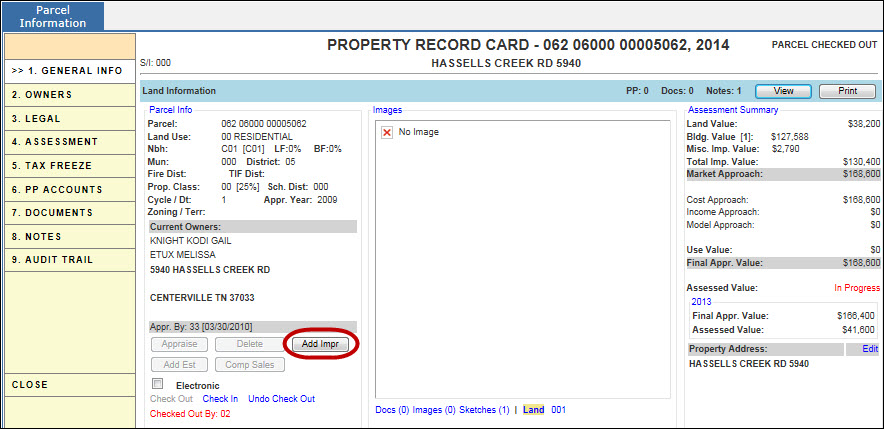
Click the Add Impr button
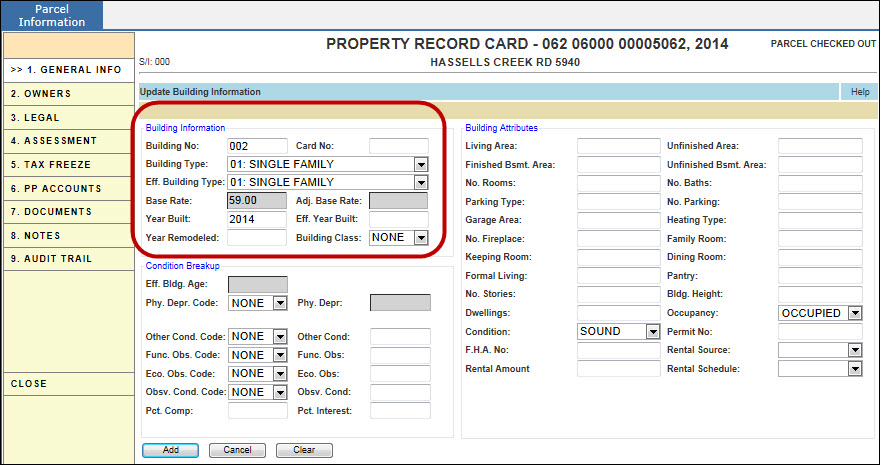
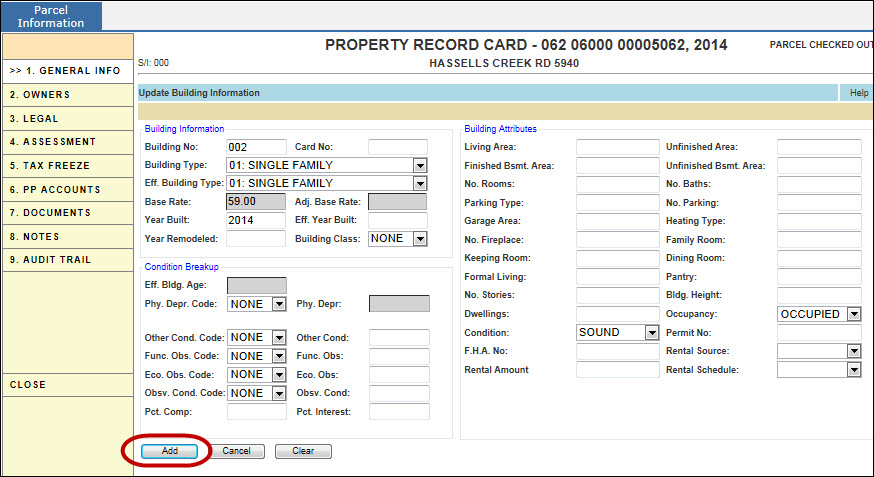
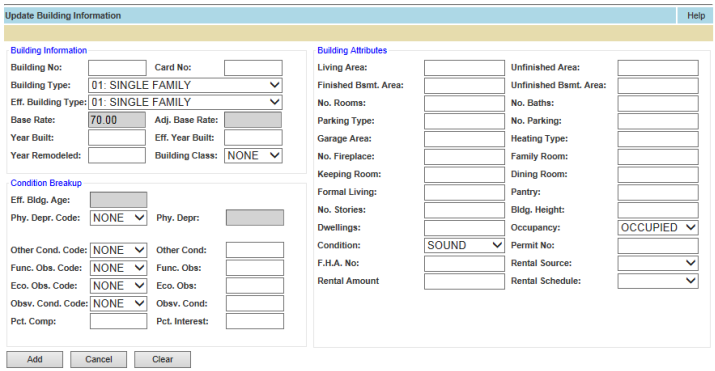
Enter the information (Building Number, Building Type, Year Built, and Effective Year Built)
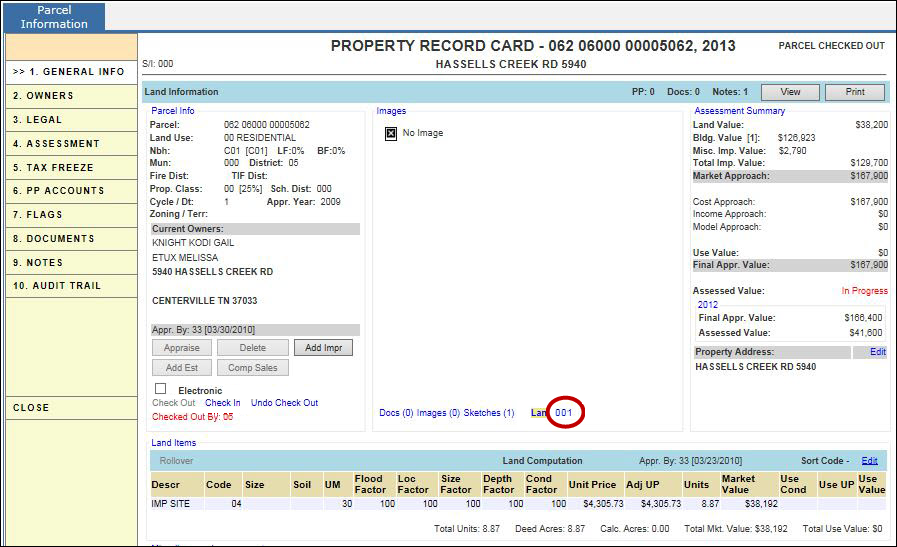
The new building is added to the General Info page
Check the parcel in
Edit Building
Check out the parcel
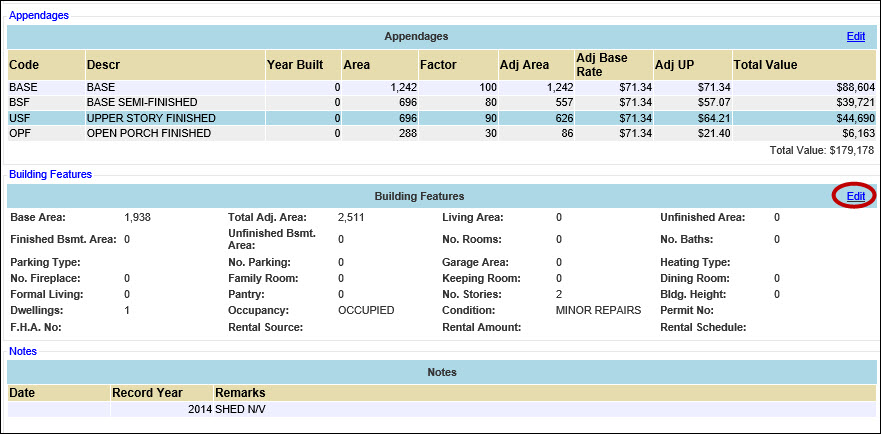
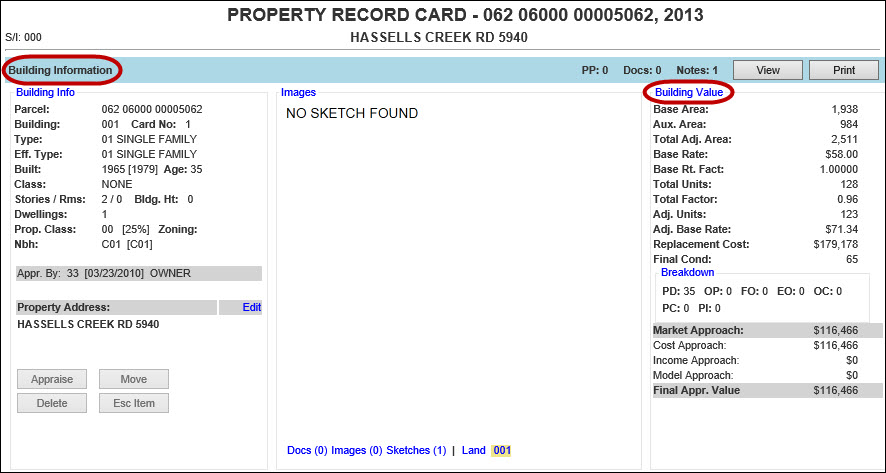
Click the Building Number hyperlink for the building that will be updated
Click either of the hyper-regions or the Edit hyperlink
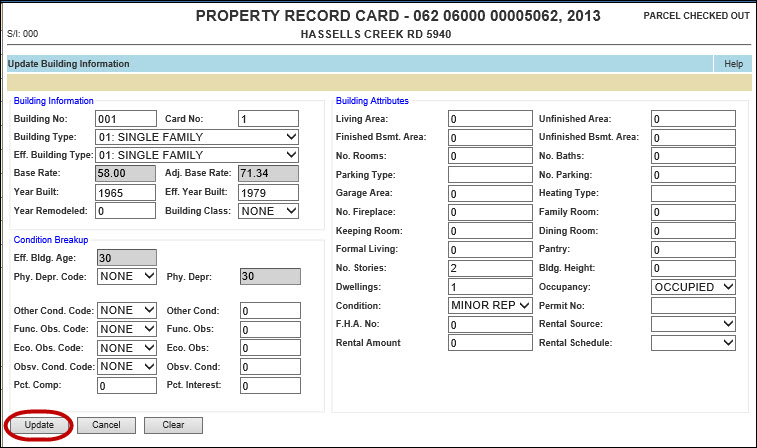
Make the changes
Check Parcel in
Delete Building
Check out the parcel
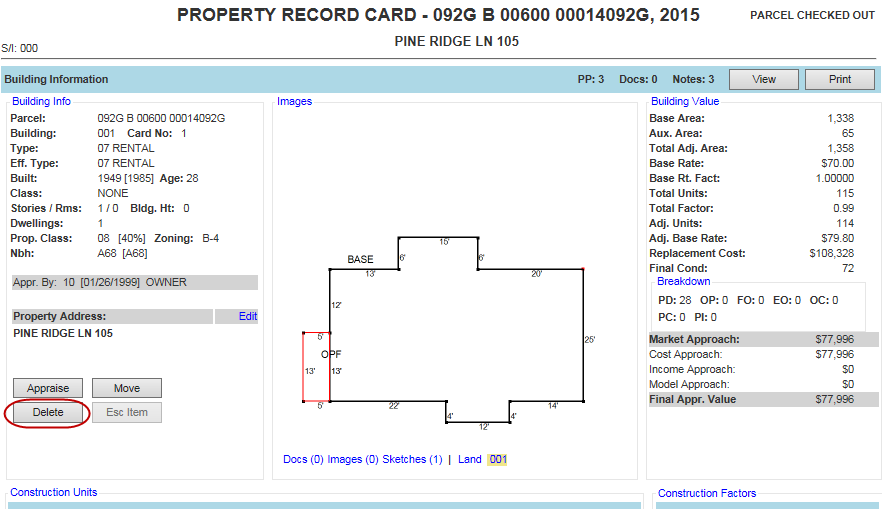
Click the Building Number hyperlink for the building that will be deleted
Click the Delete Button
Click Ok when message appears
Check the parcel in
Move Building
Check out the parcel
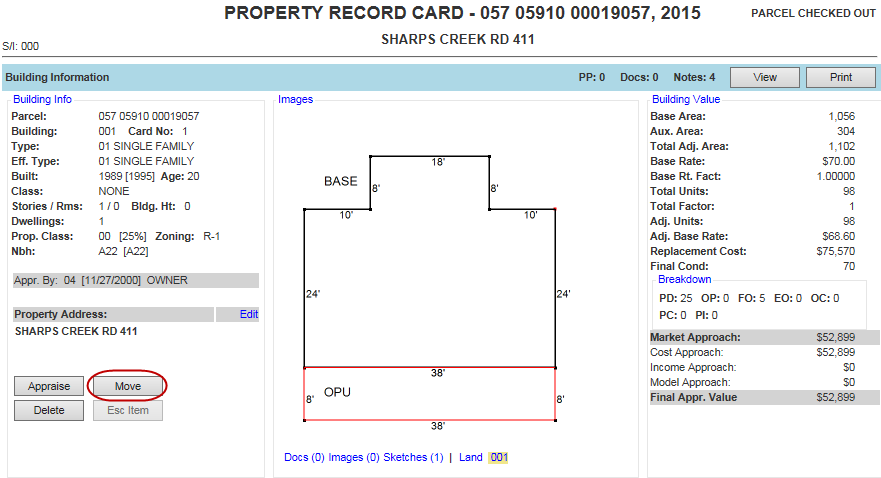
Click the Building Number hyperlink for the building that will be moved
Click the Move Button
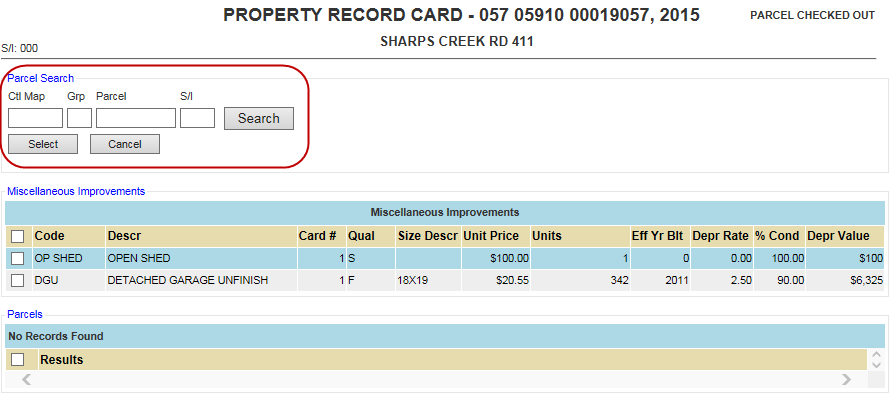
Use Parcel Search to search for the parcel you wish to move the building(s) to
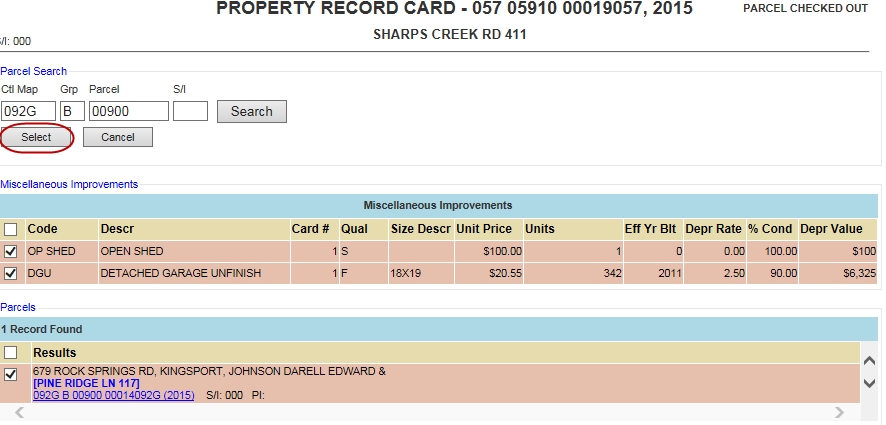
Select desired parcel from the search results
Select any Miscellaneous Improvements that will be also moved by selecting each improvement's check box
When both the parcel and all Misc. improvements are chosen, Click Select
Click Ok when message screen appears
Check in Parcel, using the Modify Bldg box to represent the move
Check in the Parcel that the building was moved to, use the Add Bldg box
Note: When moving a building, any image that has been attached to the building will move as well. |

Confidential | Copyright © 2001-2015 E-Ring, Inc.