
Mobile Home Park Processing
A mobile home, which is also referred to as a manufactured home, is a trailer that is parked in a specific area and is used as living quarters. The area that houses the mobile home is considered to be a mobile home park. An advantage of having a mobile home and moving to a park, are the lower costs and the ability to relocate easily. A Mobile Home Pad is a lot that the mobile home rests. This document guides the user through how to process mobile home parks.
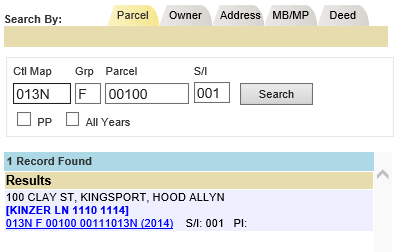
1. Search for a parcel that houses the mobile home land and open the Parcel Information Dashboard
Note: Usually the parcel with SI 000
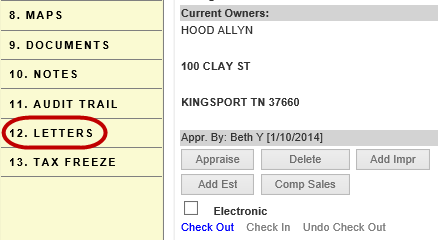
2. Click the Letters tab and choose the appropriate letter
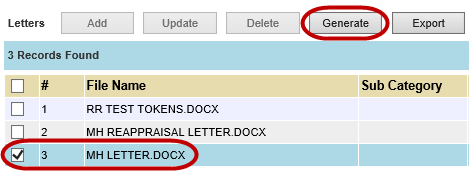
Note: if it is a reappraisal year, then the user would choose MH REAPPRAISAL LETTER, if not, choose MH LETTER
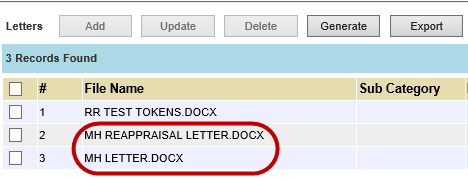
3. Checkmark the appropriate letter and click Generate
Note: Choose open on the yellow ribbon and then click the Enable Editing button when the document opens


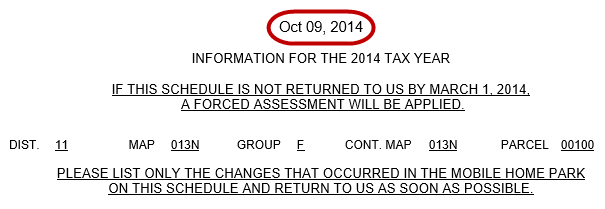
4. Change the date at the top of the document for the day the letter will be mailed and verify the other information on the letter is correct
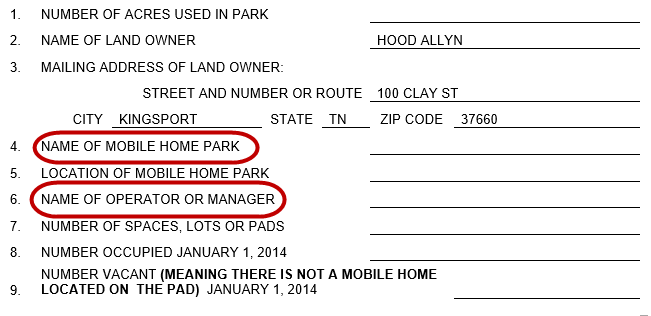
5. Type the name of the mobile home park as well as the name of the operator or manager in the space provided
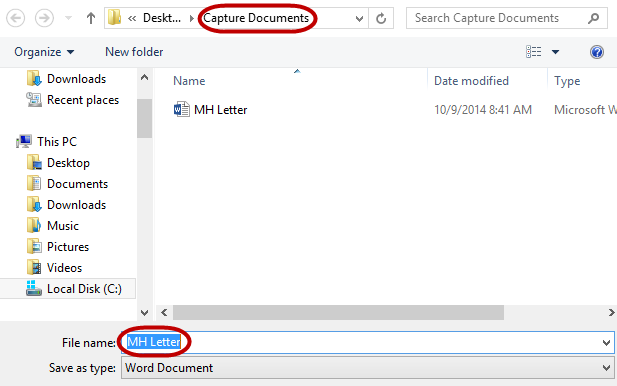
6. Print and save the letter to a folder named Capture Documents using a standard naming practice
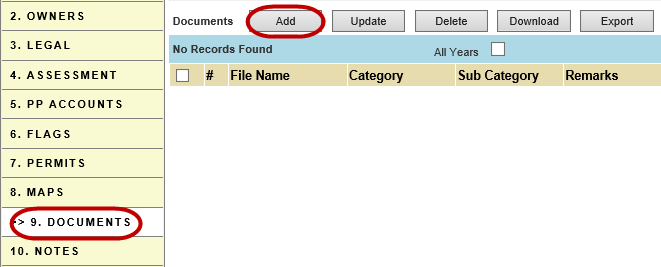
7. Click the Documents tab on the Parcel Information dashboard and then click Add
8. Click Browse to upload the MH Letter and then click Add
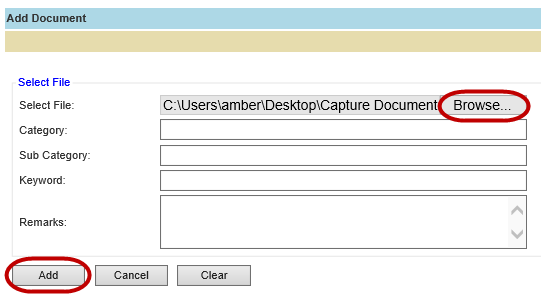
9. Click Cancel to return to the previous screen
10. Click the document link to open the document

After MH Letter Returns
11. Search for the appropriate parcel and verify data from the returned document to the master land parcel
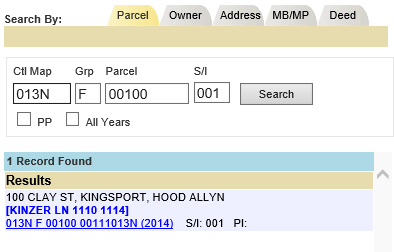
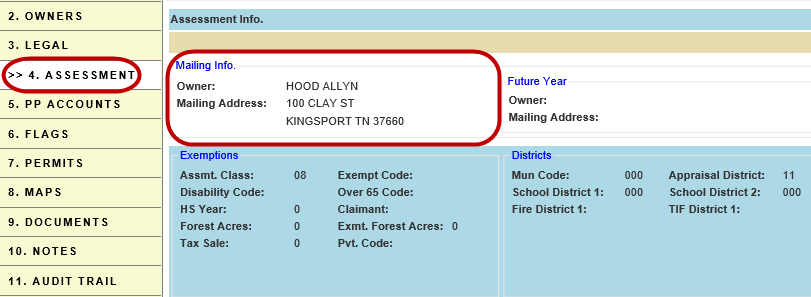
12. To update the Operator/Manager section, choose the Assessment tab, and then click within the Mailing Info hyper region.
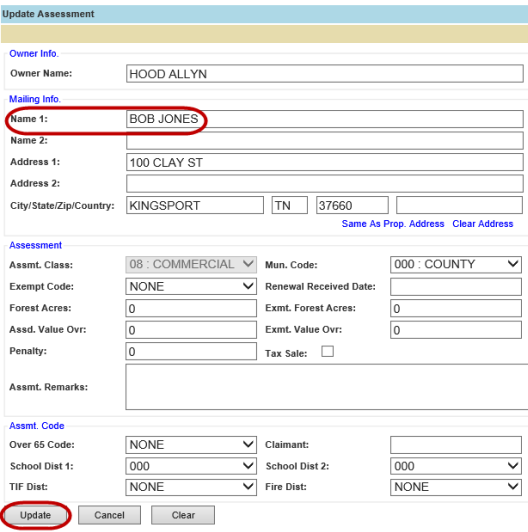
13. Update the Name 1 section in order to make an Operator/Manager change and then click Update
Note: in order to make a land size change, the user must talk to the Mapping Department, unless already authorized to
Updating the Number of Pads
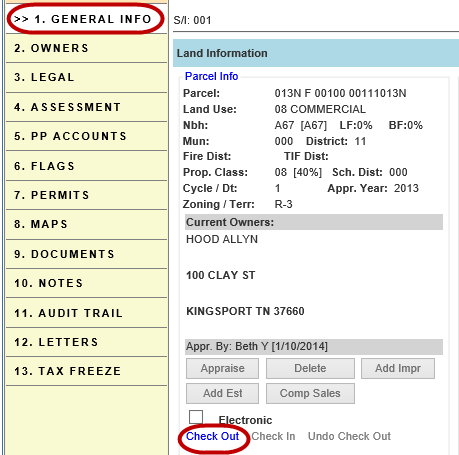
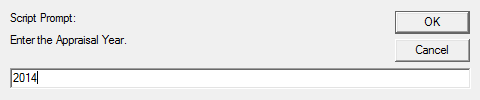
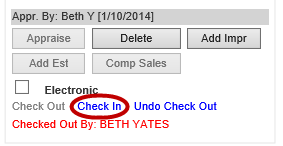
14. If the number of pads have changed, checkout the parcel by clicking Check Out on the General Information tab. If needed, type the Appraisal Year in the Script Prompt box, or click OK to continue
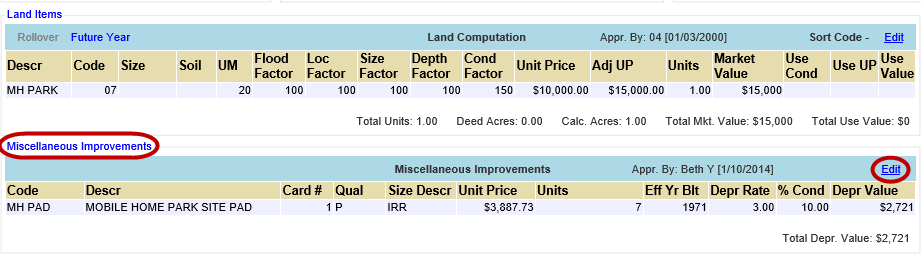
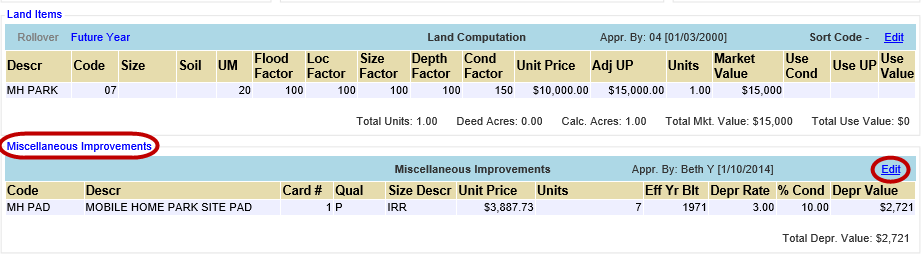
15. Click Edit in the Miscellaneous Improvements section
16. If adding pads, select MH PAD: MOBILE HOME PARK SITE PAD from the Code drop-down and enter the other appropriate information, and then click Add
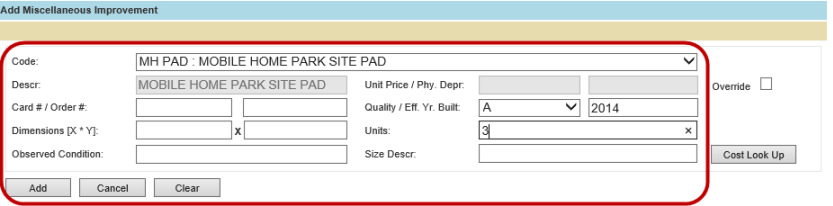

Note: Be sure to add a new Miscellaneous Improvement instead of updating the old one, because the new pads should not have the same effective year built as the older ones because the new and old pads will differ in depreciation value
17. Check In the parcel

Deleting Pads
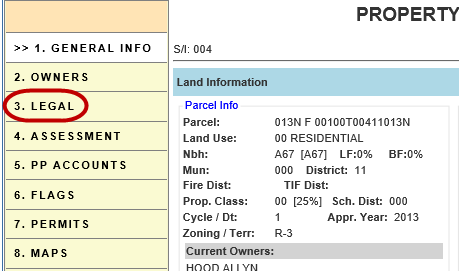
18. Open the Parcel Information dashboard for a pad, and click Legal
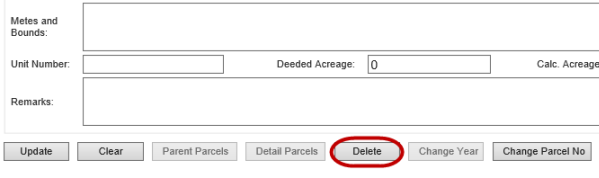
19. Click Delete and confirm
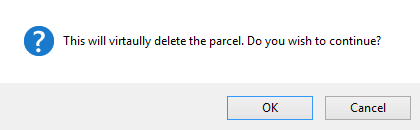
Note: Pad now says VIRTUALLY DELETED at the top of the page on the General Info tab

Re-Activating Pads
20. Open the Parcel Information dashboard for a pad, and click Legal
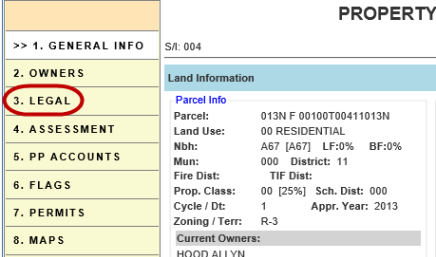
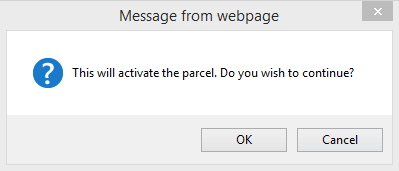
21. Click Activate and confirm

Replace a Manufactured Home
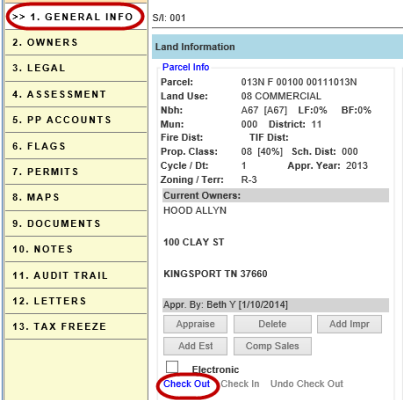
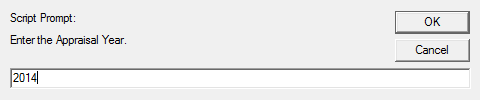
22. Search and open the parcel dashboard, click Check Out on the General Information tab. If needed, enter the Appraisal Year or click OK to confirm
23. Click Edit in the Miscellaneous Improvements section
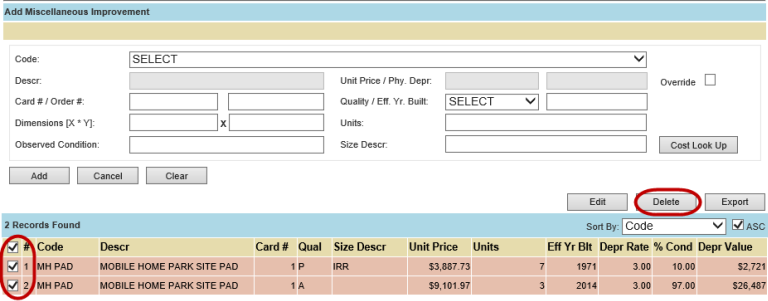
24. Check mark all records at the bottom of the page and click Delete to delete all records
25. Add back all the improvements one-by-one by typing in the appropriate information as before
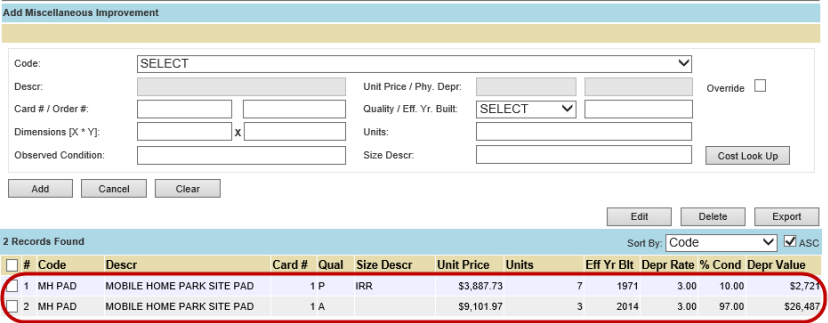
Note: if the user does not put in dimensions on the miscellaneous improvements, the dimensions will not show on a printed PRC
26. Check the parcel back in when finished

Confidential | Copyright © 2001-2015 E-Ring, Inc.